


Softaculous is an auto-installer that sets up popular web applications in a few clicks. The steps below install Kirby on your hosting account.
1. Sign in to your cPanel account.
2. Open the Software section and click Softaculous Apps Installer.
3. The Softaculous interface opens inside cPanel.
4. In the menu on the left, expand the Portal/CMS category and pick Kirby from the list that opens.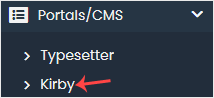
5. Click Install.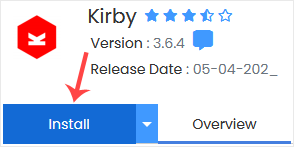
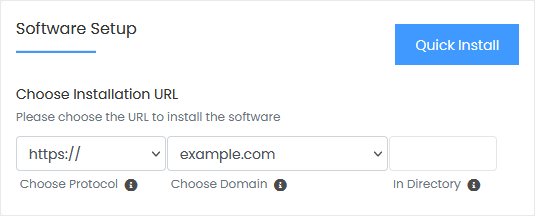
6. In the Software Setup area, complete the following field:
- Choose Installation URL: Pick the protocol and domain for the site. To place Kirby in a subfolder such as example.com/directory, type the folder name into the "In Directory" field. To run it on the main domain (example.com), leave that field empty.
7. In the Admin Account area, fill in:
- Admin Username: The login name for Kirby (for security reasons, avoid administrator and admin).
- Admin Password: Enter a strong password.
- Admin Email: Your email address.
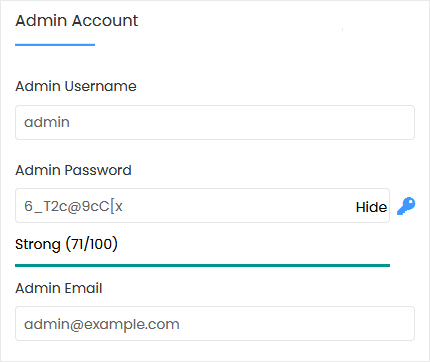
Note: Save the admin username and password in a text file or password manager. You need them later to sign in to the Kirby admin area.
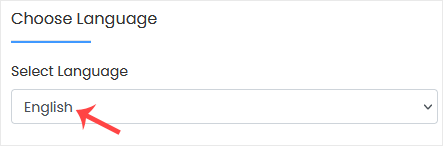
8. Choose Language: Select the language for Kirby. English is the default.
9. Advanced Options: You can skip this part, unless you need a different database name or want Softaculous to take automatic backups. Keep in mind that frequent backups consume a lot of disk space.
Last, scroll to the bottom of the page and click Install.